A natural stopping point
Ask when a pause is due, or wait for five seconds without input or a brief app switch. When macOS reports screen sharing or recording, the pause waits.
For the “just one more thing” moment
Choose your timing. Once a pause begins, Screen Pause covers every display until it ends: the Direct DMG edition blocks normal keyboard, mouse and trackpad input system-wide, while the upcoming Mac App Store edition uses active full-screen pause windows with local commands and no extra permissions.
Need to stop in an emergency? Control–Option–Command–Escape releases the pause.
USD · One-time purchase · No subscription
See when a pause starts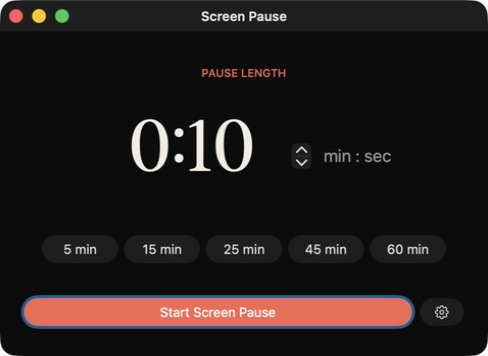
How it works
Start a manual pause from 1 second to 60 minutes, or enable Auto Pause for repeating breaks. Scheduled pauses ask first unless you opt in to a start without confirmation.
Every display goes black. Normal input briefly reveals the remaining time; it does not dismiss the pause. You can add 1, 2 or 3 minutes.
Control returns automatically and silently. Work timers resume. If you use emergency release, Auto Pause stays suspended until you resume it.
Auto Pause schedules your series. The separate Auto option starts a particular series without asking and must be enabled explicitly.
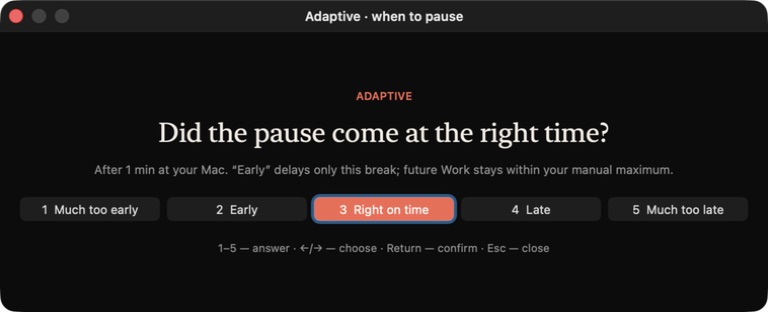
In Adaptive, Auto is unavailable: “Early” postpones this pause; “Right on time” or “Late” starts it. Before a meeting, suspend Auto Pause from the menu.
Only this webpage dims; Escape exits. To try a real pause after installing, use Settings → Access → Test 10-second pause.
Independent series
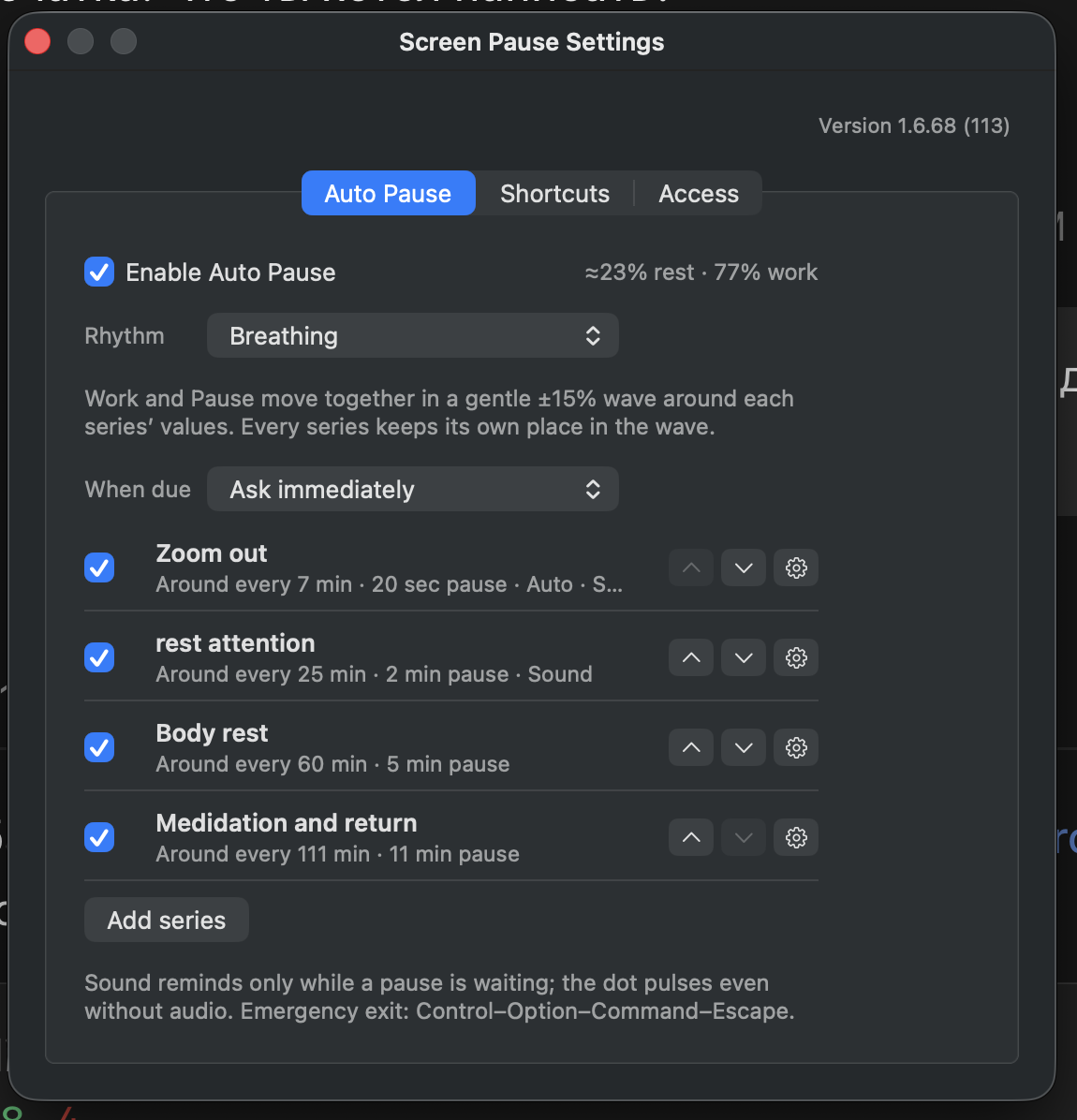
A series pairs a repeating Work interval with a Pause duration. Add a short pause to look away and a longer one to stand up. Each keeps its own progress.
Try Fixed, choose a Work interval and Pause duration that suit you, and leave Auto off so the app asks first. Add another series when you want a second kind of break.
This is a suggested setup. You choose the timing.
See the two series together
Fixed mode · 10-min work / 1-min pause
and 60-min work / 5-min pause.
Both series start together.
10 minwork completed
20 minwork completed
30 minwork completed
40 minwork completed
50 minwork completed
60 minwork completed
Both series due
One 5-min pauseThe 1-min and 5-min pauses merge. Both work timers restart after this break.
Work time, not clock time. Both work timers stop during every pause. After a short pause, the short series starts its next cycle and the long series continues from its saved progress.
With every pause taken when due: 60 min work + five 1-min pauses + one 5-min pause = 70 min elapsed.
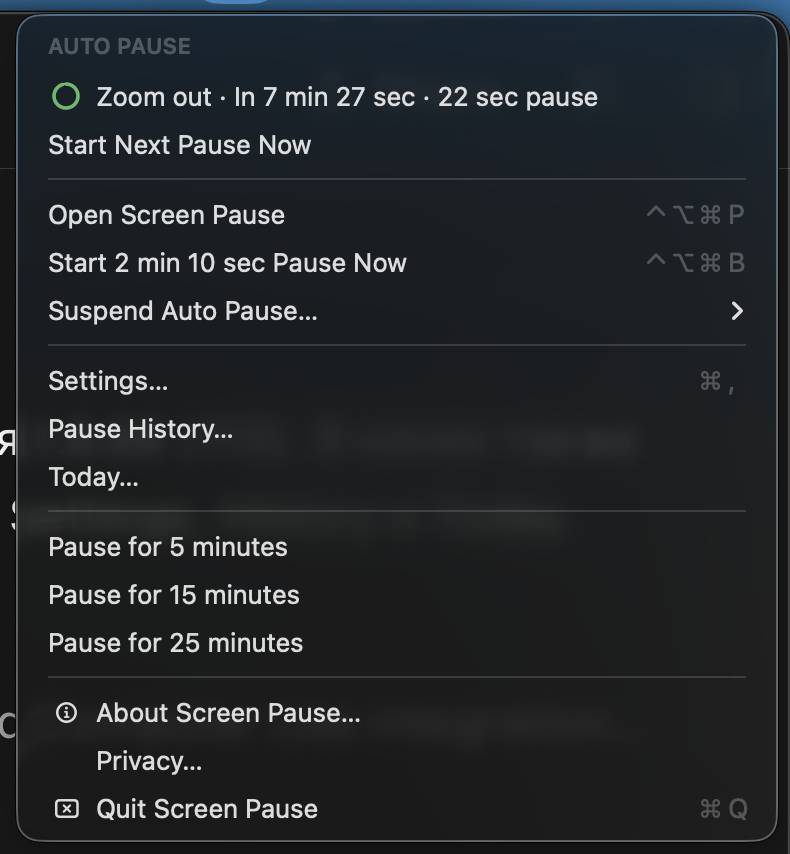
See the next pause’s countdown and intention, start it now, or suspend Auto Pause for 30 minutes, 1 hour, 2 hours or until you resume. Your series keep their progress.
Ask when a pause is due, or wait for five seconds without input or a brief app switch. When macOS reports screen sharing or recording, the pause waits.
Enable Sound for a series to hear occasional reminders while a due pause is waiting. The pause itself starts and ends silently.
Give each series a purpose, then enable, disable or reorder it without losing its settings. Sufficient time locked or asleep can also count as rest.
Today shows active Mac use and completed rest. Pause History keeps the 200 most recent pauses. Global shortcuts, Apple Shortcuts and command-line automation are also available.
Three rhythms
Choose one mode for Auto Pause. It applies to every series; each keeps its own timings.
I want a predictable schedule.
Repeat the Work interval and Pause duration you choose. A straightforward place to start.
For example: 20 minutes of work, then a 1-minute pause, every cycle.
I prefer a little variation.
Work and Pause gently rise and fall together, up to 15% above and below your values. Each series keeps its own rhythm.
Your values are the center of the wave. This varies timing, not breathing exercises.
I want to adjust through feedback.
Answer whether a pause came early, on time or late, and how its length felt. Learning stays on your Mac.
Set Work to 20 minutes and Pause to 1 minute: future cycles may ask sooner or rest longer. Work stays at or below your maximum; Pause stays at or above your minimum. Early postpones only the current pause.
Private by design
The app has no accounts, analytics, advertising, telemetry or network communication. Settings, feedback and timing records stay on your Mac. It never records what you type or which apps you use.
Read the full privacy statementScreen Pause is for people who notice break reminders but keep working anyway. It helps you follow through on the pause you chose: once it starts, every display is covered until it ends (with system-wide input blocking in the Direct DMG edition, or active full-screen pause windows in the upcoming Mac App Store edition) and an emergency release remains available. Independent series coordinate short and long breaks, preserving progress and merging pauses that fall due together. $19.99 is a one-time purchase with no subscription.
Normal keyboard and mouse actions do not dismiss an active pause. Use Control–Option–Command–Escape for emergency release. That pause does not count as completed rest, and Auto Pause stays suspended until you resume it.
Both editions require macOS 13 or later. The Direct DMG edition requires Accessibility and Input Monitoring permissions to suppress input system-wide during a pause. The upcoming Mac App Store edition runs in App Sandbox and requires neither Accessibility nor Input Monitoring. After installing either edition, run the 10-second test in Settings → Access before a longer break. Input contents are never stored.
When macOS reports active screen sharing or recording, a due automatic pause waits. After that activity ends, the app waits for a fresh five-second natural stop before asking. You can also suspend Auto Pause from the menu before a meeting.
No. It darkens only this webpage for ten seconds and you can exit with Escape. The installed Mac app covers every display (with system-wide input blocking in the Direct DMG edition, or standard full-screen pause windows in the Mac App Store edition). The preview does not install anything or request macOS permissions.
A Gumroad receipt with access to the Mac download: a signed and notarized DMG containing Screen Pause, an Applications shortcut and setup instructions. No subscription or app account is needed. Download and installation help →
Email kmelnikov+screenpause@gmail.com for help with either edition or questions before buying. For direct downloads, use your Gumroad receipt’s View Content link. Downloads and support →
Research supports making room for breaks, but does not establish one ideal schedule or test Screen Pause itself.
Screen Pause for macOS · Direct DMG setup
USD · One-time purchase · macOS 13+ · Apple silicon & Intel
Installation & purchase support